

 Automation
 AI Integration
 Custom Business Systems
 Web Development & Hosting
 Resource Hub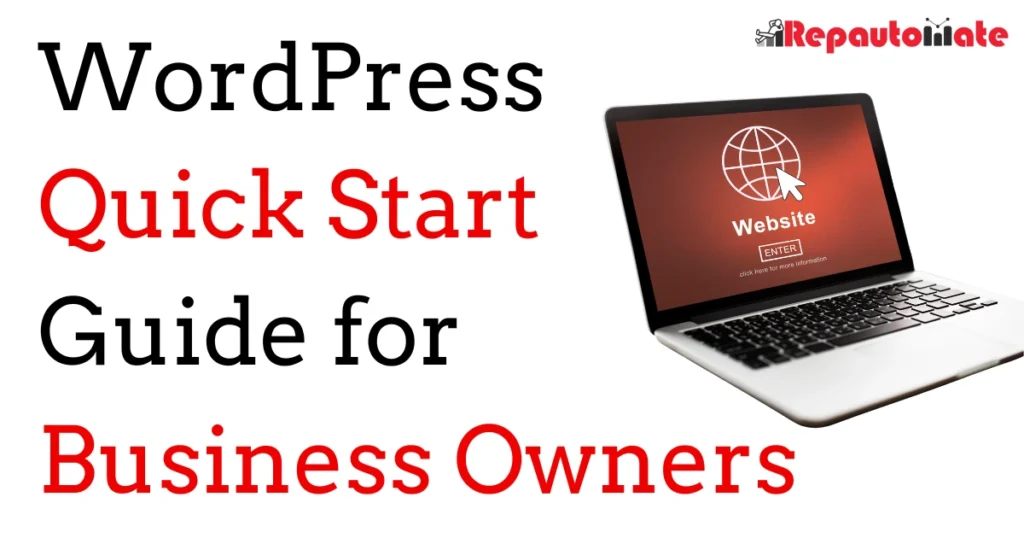
New to WordPress? Start here.
So Repautomate, or another company, has just built a WordPress website for your business and sent you the login details.
Now what?
You do not need a full WordPress course just because you own a WordPress website. But you should have enough independence to understand what you are looking at, make basic changes yourself, and know which areas are better left alone.
It also helps you understand what is actually happening behind the website you see on screen, and what you are paying for when someone manages and maintains it for you.
This short guide covers the basics without turning you into a web developer.
1. Logging In
Your WordPress administration area is separate from the website your customers see.
For most WordPress websites, the login address looks like:
yourwebsite.co.za/wp-admin
Enter the username and password provided by your website developer.
Once logged in, you will arrive at the WordPress Dashboard.
Keep your login secure
- Use a strong, unique password.
- Avoid sharing one administrator account between several people.
- Only give website access to people who genuinely need it.
- Do not send administrator passwords around casually by email or WhatsApp.
Administrator access gives someone significant control over your website.
2. What Am I Looking At?
The menu on the left-hand side of WordPress is where most website management happens.
You may see quite a few options. That does not mean you need to use all of them.
Pages
These are normally the main pages of your website:
Home, About, Services, Contact and similar pages.
If you need to change wording, contact details, prices or other existing website content, this is usually where you start.
Media
The Media Library contains files uploaded to the website, including:
- Images
- PDFs
- Documents
- Other media files
Posts
If your website has a blog, news section or resource centre, articles are normally managed here.
Some websites may also have additional sections for things such as products, downloads, projects, properties or other custom content.
Users
This controls who can log into the website and what level of access they have.
Plugins
Plugins add functionality to WordPress.
Your website may use plugins for things such as:
- Security
- Contact forms
- SEO
- Backups
- E-commerce
- Website speed
- Spam protection
- Analytics
- Custom functionality
Do not deactivate or delete a plugin simply because you do not recognise it.
It may be responsible for something important elsewhere on the website.
Appearance
This area controls parts of the website’s design, theme and structure.
Changes here can affect large portions of the website, so it is generally better left alone unless you know what the setting does.
3. Making a Small Change
One of the main benefits of WordPress is that you do not necessarily need a developer every time you want to correct a sentence or replace an image.
For a basic page change:
- Go to Pages.
- Find the page you want to change.
- Open the page.
- Open the page builder if your website uses one.
- Find the existing text, image or element.
- Make the change.
- Save or update the page.
- Open the live website and check that everything still looks correct.
Depending on the Theme that was used, you may have a site builder included which allows you to visually edit the existing page.
The safest approach
Edit what is already there rather than rebuilding it.
Changing the wording inside an existing text element is relatively low risk.
Deleting containers, moving sections, changing layouts or rebuilding parts of the page can affect desktop and mobile layouts in ways that are not immediately obvious.
4. Changing an Image
If you simply need to replace an existing image:
- Open the relevant page.
- Select the existing image.
- Choose another image from the Media Library or upload a new one.
- Save the page.
- Check the result on both desktop and mobile.
Use properly sized, good-quality images where possible.
Uploading unnecessarily large image files can increase page load times.
.webp or .svg images are preferable for speed
Also avoid deleting images from the Media Library just because you do not recognise them. They may still be used somewhere else on the website.
5. What Can I Safely Change?
There is no universal rule because every website is built differently, but the following is a useful starting point.
Usually straightforward
- Correcting spelling
- Updating wording
- Changing phone numbers
- Updating email addresses
- Changing business hours
- Updating existing prices
- Replacing an existing image
- Editing a normal blog post
- Updating basic company information
Change with more care
- Creating new pages
- Moving page sections
- Changing menus
- Adding users
- Editing contact forms
- Changing products
- Changing checkout settings
- Installing new plugins
- Changing SEO settings
Generally leave alone unless you understand them
- Theme files
- PHP
- CSS
- JavaScript
- Code snippets
- Database settings
- Security configuration
- Caching settings
- Plugin configuration
- DNS
- Domain settings
- Hosting configuration
If you do not know what a setting does, there is usually no reason to experiment with it on a live business website.
6. Why Are There So Many Plugins and Settings?
A finished website can look simple from the outside.
Behind it, there may be considerably more happening.
Depending on the website, different systems may be handling:
- Website security
- Backups
- Search engine optimisation
- Contact forms
- Spam filtering
- Caching and performance
- Image optimisation
- Analytics
- Email delivery
- User permissions
- E-commerce
- Payment processing
- Custom functionality
- Integrations with other systems
There may also be custom code or snippets used to make particular features behave correctly.
These components can depend on one another.
That is why removing one plugin or changing one technical setting can sometimes break something that appears completely unrelated.
7. What About All Those Updates?
WordPress websites use software that continues to change after the website has been launched.
You may therefore see available updates for:
- WordPress itself
- Plugins
- Your website theme
Updates are normal and are often important for security, compatibility and functionality.
However, website maintenance is not simply a matter of clicking Update All whenever a notification appears.
Proper maintenance can include:
- Checking available updates
- Taking or verifying backups
- Updating WordPress
- Updating plugins
- Updating the theme
- Watching for compatibility problems
- Testing important pages
- Testing forms
- Checking mobile layouts
- Monitoring website security
- Checking that backups continue to work
- Fixing problems introduced by software changes
Sometimes an update takes seconds.
Sometimes one component changes and creates a problem somewhere else.
That ongoing responsibility is one of the differences between having a website and maintaining a website.
8. Before Changing Something Technical
Ask yourself two questions:
Do I know what this setting does?
and
Do I know what else might depend on it?
If the answer to either question is no, it is usually better to check first.
Changing a sentence incorrectly is easy to reverse.
Deleting a plugin, changing code or altering an important technical setting can require considerably more troubleshooting.
9. If Something Breaks
The worst thing to do is start changing ten more settings hoping one of them fixes the problem.
Instead:
- Stop making further changes.
- Take a screenshot of any error message.
- Write down what you changed immediately before the problem started.
- Check whether the issue affects one page or the entire website.
- Contact your website support provider if needed.
Knowing exactly what changed and when can make troubleshooting much faster.
10. You Own a Website. You Do Not Need to Become a Web Developer.
Having access to WordPress means you can retain control of your own website.
You should be able to log in, understand the basics and make sensible everyday content changes without being completely dependent on somebody else.
At the same time, access to every technical setting does not mean you need to manage every technical setting yourself.
You can choose how much you want to manage internally and how much you would rather leave to somebody who works with WordPress regularly.
Quick Reference
Need to change some wording?
Go to the relevant page and edit the existing text.
Need to replace an image?
Replace the existing image rather than rebuilding the section.
See a plugin you do not recognise?
Leave it alone until you know what it does.
See updates available?
Normal. Updates are part of ongoing website maintenance.
Thinking about changing code, security or technical settings?
Check before changing them.
Something stopped working after you made a change?
Stop changing things, record what you did and troubleshoot from there.
Keep a Copy
Download the latest version of the Repautomate WordPress Quick Start Guide as a PDF to keep for future reference or share with other members of your team.
About This Guide
This guide was created by Repautomate as a straightforward introduction for South African businesses receiving access to a WordPress website.
It is not intended to replace full WordPress training or technical documentation.
If you want to learn WordPress in depth, there are extensive free tutorials and courses available online.
If you simply want enough knowledge to understand your website, make basic changes and know when something requires technical support, this guide should be enough to get you started.